
How to Speed Up WooCommerce: A Core Web Vitals Guide for Online Stores
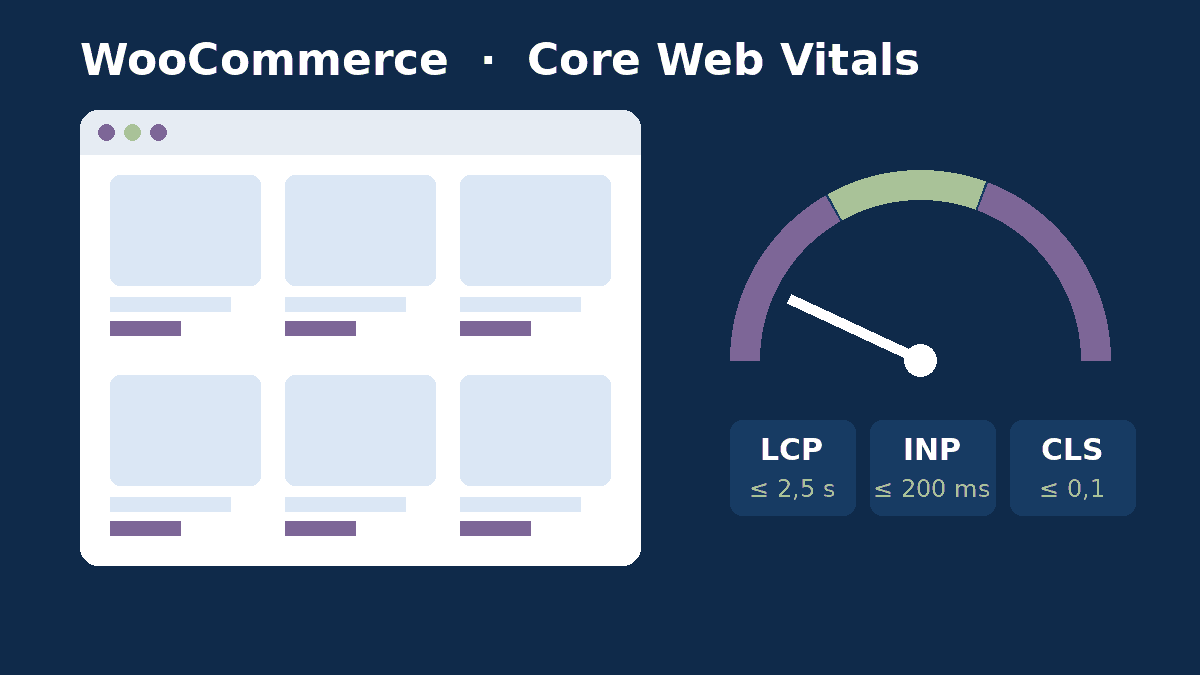
To speed up WooCommerce, start by measuring Core Web Vitals on your product and category pages, then work through the fixes in this order: hosting and server-side caching, product images, unnecessary scripts (plugins, tracking pixels, cart fragments) and finally your theme. That order delivers the biggest wins for shoppers and for Google.
A slow store doesn't just frustrate people. It sells less. Every extra second on a phone gives a shopper time to head back to the search results or to another tab. And because WooCommerce is so flexible, stores tend to pile up plugins and scripts that weigh down every page.
This guide is for store owners, marketing teams and startups who want a fast WooCommerce store. It covers what to measure, what to fix first, and when a rebuild makes more sense than another round of tweaks.
Why WooCommerce speed affects revenue
The "Milliseconds Make Millions" study, run by Deloitte and 55 for Google across 37 European and US brands, measured what happened after a 0.1-second improvement in mobile speed. Retail sites saw conversion rates rise by 8.4%, and shoppers spent 9.2% more. The data was collected in 2019, but the logic still holds: less waiting means fewer drop-offs.
Speed matters for SEO too. Google's page experience documentation confirms that Core Web Vitals are used by its ranking systems. Google is also clear that good scores don't guarantee top rankings, because relevance still comes first. Treat performance as a tiebreaker and a conversion lever, not a silver bullet.
Most stores start from a weak position. According to the CMS chapter of the HTTP Archive 2025 Web Almanac, only 45% of WordPress sites pass all three Core Web Vitals on mobile. A genuinely fast WooCommerce store stands out.
The three Core Web Vitals, explained for WooCommerce
Google looks at three metrics, measured on real visitors at the 75th percentile, separately for mobile and desktop. The "good" thresholds are defined on web.dev.
| Metric | "Good" threshold | Common WooCommerce culprit | First fix |
|---|---|---|---|
| LCP (Largest Contentful Paint) | 2.5 s or less | Heavy product photo, slow server, homepage slider | Server caching, prioritized WebP/AVIF image |
| INP (Interaction to Next Paint) | 200 ms or less | Third-party scripts, page builders, AJAX filters, variation swatches | Remove or defer non-essential JavaScript |
| CLS (Cumulative Layout Shift) | 0.1 or less | Images without dimensions, cookie banners, injected sale badges | Reserve space for elements, control web fonts |
Measure before you optimize
Don't rely on a single Lighthouse score from your laptop. There are two kinds of data:
- Field data: what your real visitors experience, shown at the top of PageSpeed Insights and in the Core Web Vitals report in Search Console. This is what Google uses.
- Lab data: a simulated test that is great for diagnosing issues and comparing before and after a change.
Test every page template, not just the homepage: a category page, two or three top-selling product pages, the cart and the checkout. On WooCommerce, product pages and filtered category pages are usually the weak spots, and they are exactly the pages that earn organic traffic.
10 ways to speed up a WooCommerce store
1. Hosting built for WooCommerce
No amount of tuning makes up for an overloaded server. A store needs a current, supported PHP version (see the official WordPress requirements), dedicated resources and a consistent server response time (TTFB). If your TTFB regularly goes above one second, start there. Our web hosting service page explains what to look for.
2. Page caching with the right exclusions
Cache the homepage, category pages and product pages. Exclude the cart, checkout and My Account pages: caching them can show one customer's session to another. Make sure the cache is purged whenever a price or stock level changes.
3. A persistent object cache (Redis or Memcached)
WooCommerce makes a lot of database queries for sessions, carts, prices and variations. An object cache keeps those results in memory and takes pressure off the server, especially on uncached pages like the cart and checkout.
4. Product images optimized for LCP
The main product image is often the LCP element. Serve it as WebP or AVIF at the right size using srcset, with width and height set. Above all, don't lazy-load it: add fetchpriority="high" instead. Keep lazy loading for gallery thumbnails and related products.
5. A lightweight theme instead of a bloated page builder
Many all-in-one themes load sliders, animations and extra fonts on every page. A lean theme, or a block-based theme, cuts JavaScript and CSS dramatically. A fast theme also makes it easier to build high-converting product pages.
6. A plugin audit
Install Query Monitor on a staging site to spot slow queries and plugins that load their assets everywhere. Remove the plugins you no longer use, and restrict the others to the pages that need them.
7. Cart fragments under control
The cart fragments script refreshes the mini-cart with an AJAX request. Since WooCommerce 7.8, it is no longer loaded on every page by default, only where the cart widget is displayed, as the WooCommerce developer blog explains. Some themes and plugins switch it back on everywhere. Open the Network tab in your browser and check whether wc-ajax=get_refreshed_fragments fires on pages that don't need it.
8. Third-party scripts, the biggest threat to INP
Ad pixels, live chat, review widgets, maps and embedded videos all slow down how quickly a page responds. Take an inventory, remove duplicates (two analytics tools tracking the same thing), load chat only after a user interaction, and manage pixels through a well-configured tag manager.
9. High-Performance Order Storage (HPOS)
HPOS stores orders in dedicated database tables. In benchmarks published by WooCommerce, order creation was about 5x faster and checkout about 1.5x faster. HPOS mostly speeds up order processing and the admin area rather than front-end page loads. Check plugin compatibility before you switch it on.
10. A well-maintained database
Expired transients, post revisions, old sessions and completed scheduled actions bloat the database over time. Regular clean-ups, tested on a copy first, belong in any good website maintenance plan.
Example: a four-week speed plan for a fashion store
Here is an illustrative case: a WooCommerce clothing store with 800 products, size and color variations, a multipurpose theme and 35 plugins. PageSpeed Insights reports a mobile LCP of 4.1 seconds on product pages and a poor INP on filtered category pages.
A typical plan would look like this:
- Week 1: measure each template, move to hosting with object caching, set up page caching and its exclusions.
- Week 2: convert product photos to WebP, remove lazy loading from the main image, add explicit dimensions everywhere.
- Week 3: remove 8 unused plugins, load the rest conditionally, delay live chat, clean up tracking pixels.
- Week 4: replace the heaviest AJAX filter, re-test, then monitor field data for 28 days.
Google's field data uses a rolling 28-day window, so give it time before judging the results. It's also a good moment to make sure your WooCommerce checkout stays fast and friction-free.
Optimize or rebuild your WooCommerce store?
Optimization is enough when the foundations are sound: a decent theme, a reasonable number of plugins and suitable hosting. A rebuild pays off when the theme forces a heavy page builder onto every page, when old custom code blocks updates, or when the catalog has doubled without any change in architecture. In that case, a performance-focused website redesign is often cheaper than endless patches. Still weighing your platform? Our Shopify vs WooCommerce comparison can help.
WooCommerce speed checklist
- Field data reviewed for the homepage, a category page and top product pages.
- TTFB stable and under one second.
- Page cache on, with cart, checkout and account pages excluded.
- Object cache enabled.
- Main product image in WebP/AVIF, not lazy-loaded, with dimensions.
- Unused plugins removed, assets loaded only where needed.
- Cart fragments limited to pages showing the mini-cart.
- Third-party scripts inventoried and deferred.
- HPOS enabled after a compatibility check.
- Speed re-tested after every major update.
Conclusion: speed is an ongoing job
Speeding up WooCommerce isn't a one-off project. Every new plugin, campaign or banner can drag your Core Web Vitals down again. The stores that stay fast are the ones that measure regularly and fix root causes, not just symptoms.
Our team runs performance audits, optimizations and rebuilds for WooCommerce, Shopify and WordPress stores across Europe and North Africa. Explore our WooCommerce development services or send us your store URL for a free initial review.