
Mobile ecommerce UX: designing for the thumb
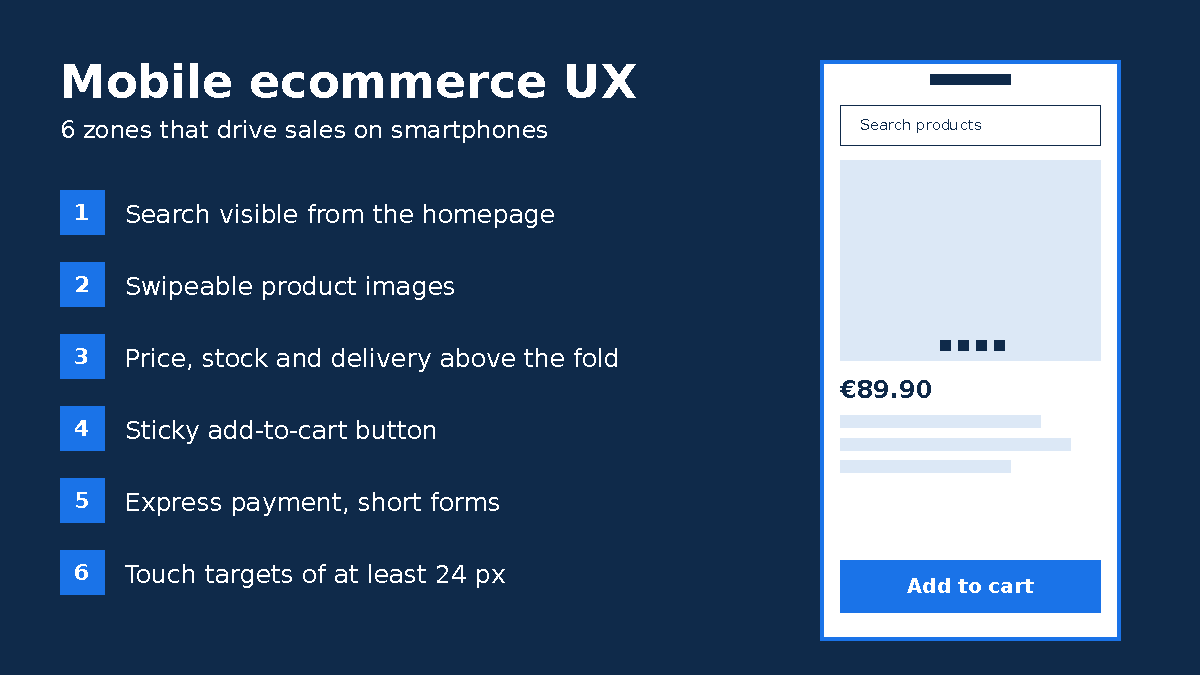
Good mobile ecommerce UX means designing every step of the purchase for a six-inch screen used with one thumb: visible search, simple filters, a product page that shows price, stock and delivery without scrolling, an add-to-cart button that is always within reach, a short checkout with express payments, and fast pages. It is not a shrunken desktop site. It is a journey of its own.
Phones are now the main way shoppers reach online stores, yet the experience still lags behind. Baymard Institute's latest mobile ecommerce UX benchmark, updated in July 2026 and covering more than 150 major retail sites, rates 75% of them as "mediocre" on mobile, and none as "perfect". If the biggest retailers struggle, small and mid-sized stores have plenty of room to win.
This guide is written for store owners, startups and marketing teams running WooCommerce, Shopify or Webflow. It builds on our ecommerce conversion rate optimization framework and focuses on what is specific to mobile.
Why mobile UX decides your revenue
Every bit of friction costs more on mobile than on desktop. The screen is small, the connection can be patchy, attention is split and typing is tedious. A clumsy menu or a tiny form field is often all it takes for a shopper to abandon a cart.
Mobile also shapes your SEO. Google now crawls and indexes sites with its smartphone crawler, as the Search Central team confirmed when it announced that mobile-first indexing had landed. In practice, any content, link or markup that only exists on your desktop layout is invisible to Google.
| Journey stage | Common mobile problem | What it costs you |
|---|---|---|
| Homepage and navigation | Four-level menus, search hidden behind an icon | Shoppers can't find the category and leave |
| Product listing | Full-screen filters with no summary of what's applied | Confusing results, abandoned browsing |
| Product page | Price and shipping time buried under three screens of copy | Doubt about total cost, exit to a competitor |
| Checkout | Forced account creation, wrong keyboard for each field | Cart abandonment at the very last step |
Navigation and search: mobile UX best practices 1 to 3
1. Show a real search bar on the homepage
On mobile, many visitors search rather than browse. Display an actual search field at the top of the page instead of a lone magnifying glass, with a submit button right next to it. Add autocomplete that tolerates typos and suggests categories, so "trainer" finds "trainers" and "sumer dress" still finds summer dresses.
2. Keep the menu short and the categories obvious
Limit the main menu to two visible levels, highlight where the user currently is, and offer a "View all" link at each level. Avoid auto-rotating homepage carousels: on a touchscreen they get in the way far more than they help.
3. Make touch targets big enough
WCAG 2.2 success criterion 2.5.8 sets a minimum of 24 × 24 CSS pixels for touch targets, or enough spacing around smaller ones. For key actions such as add to cart, size selection or quantity, go bigger: 44 to 48 pixels is a widely used comfort standard. This also matters for accessibility compliance, covered in our guide to the European Accessibility Act for ecommerce.
Product listings and filters on mobile
4. Put filters in a drawer and show what's applied
Open filters in a side panel or bottom sheet and show the number of matching products before the user confirms. Once filters are applied, display them as removable chips at the top of the list. According to Baymard, 66% of the mobile sites it tested don't show this overview of applied filters, which leaves shoppers unsure what they're looking at.
5. Design product cards that can be scanned in a second
A mobile product card needs four things: a sharp photo, a short name, the price and one key detail (available colors, rating, free shipping). Group variations of the same product on a single card instead of listing the same T-shirt ten times in ten colors.
Mobile product pages: what must appear without scrolling
6. A swipeable gallery with lightweight images
Shoppers should swipe through photos, with dots or thumbnails showing their position, and pinch to zoom. Serve WebP or AVIF images sized for mobile screens. Our guide to ecommerce product image optimization walks through the process.
7. Price, availability and delivery above the fold
The first screen of a product page should answer three questions: how much does it cost, is it in stock, and when will it arrive? Mention accepted payment methods and the returns policy close by. Longer descriptions, specs and care instructions can live in collapsible sections below.
8. A sticky add-to-cart button
As soon as a visitor scrolls into the description or reviews, the main button disappears. A fixed bar at the bottom of the screen, right where the thumb rests, keeps the action within reach. It should repeat the price and, for a variable product, open the size or color picker rather than throw an error.
Mobile cart and checkout: cut the typing
9. Guest checkout and express payments
Always allow guest checkout. Add express payment buttons such as Apple Pay, Google Pay, Shop Pay or PayPal on the product page or in the cart: they fill in the address and payment details in a single confirmation, which makes a huge difference on a phone. Our article on WooCommerce checkout optimization covers the other levers against cart abandonment.
10. The right keyboard for every field
This is a small technical detail with a big impact. The HTML attributes type="tel", type="email", inputmode="numeric" and autocomplete bring up the right keyboard and let the phone prefill name, address and phone number. Add postcode lookup or address autocomplete where your market supports it, and preselect the country from the shopper's location.
11. Helpful error messages in the right place
Validate each field as it is completed and show the message directly under it, with a clear instruction ("Enter a 5-digit ZIP code") instead of a generic "Invalid field" banner at the top of the page, out of view.
Speed and responsiveness: mobile UX best practice 12
12. Pass Core Web Vitals on mobile
A slow store is a bad mobile experience, however polished the design. Google measures three Core Web Vitals using real-user data. Since March 2024, Interaction to Next Paint (INP) has measured how quickly a page responds to taps and clicks, and it is often the metric that hurts script-heavy stores.
| Metric | What it measures | "Good" threshold | Common mobile culprit |
|---|---|---|---|
| LCP | Loading of the main content | 2.5 s or less | Oversized product image, slow hosting |
| INP | Responsiveness to interactions | 200 ms or less | Too many app, tracking and chat scripts |
| CLS | Visual stability | 0.1 or less | Banners and pop-ups injected after load |
Test your key templates in PageSpeed Insights in mobile mode. To go further, follow our guides to speeding up WooCommerce and speeding up a Shopify store.
WooCommerce, Shopify and Webflow: mobile UX by platform
All three platforms can deliver an excellent mobile experience, but the effort required differs.
| Mobile UX factor | WooCommerce | Shopify | Webflow |
|---|---|---|---|
| Mobile theme | Depends on the theme, often needs rework | Official themes are strong on mobile | Fully custom design with control over every breakpoint |
| Express payments | Via WooPayments, Stripe or PayPal | Native dynamic checkout buttons and Shop Pay | Apple Pay, Google Pay and PayPal available |
| Checkout | Fully customizable | Highly optimized, customization within limits | Customizable within Webflow Ecommerce's limits |
| Main risk | Plugins that weigh down every page | Apps that inject extra scripts | Heavy animations and interactions |
Still choosing a platform? Read our Shopify vs WooCommerce comparison and our review of Webflow Ecommerce features and limitations.
How to audit your store's mobile UX in a day
- Start with the data. In Google Analytics, compare mobile and desktop conversion rates, then find the funnel step where the gap opens up.
- Test on real phones. A budget Android device on a 4G connection reveals problems your browser's device emulator never will.
- Place a full order one-handed. Search, filter, product page, cart, payment: note every hesitation and every accidental zoom.
- Measure performance. Run PageSpeed Insights on the homepage, a category, a product page and the cart, and check the Core Web Vitals report in Search Console.
- Prioritize. Fix what blocks the purchase first (checkout, cart button, errors), then what slows discovery (search, filters).
Example: a Shopify homeware brand selling across Europe
Consider an illustrative case: a homeware brand on Shopify whose traffic comes mostly from Instagram and Pinterest, and therefore mostly from phones, while most orders are still placed on desktop. The audit finds a size and dimensions table that opens in a new tab, an add-to-cart button that vanishes below the description, three review and upsell apps loading scripts on every page, and a checkout where Shop Pay and Apple Pay were never enabled.
The fix list is short: dimensions in a bottom sheet, a sticky purchase bar, express payment buttons on the product page, and two of the three apps removed or replaced with lighter alternatives. The impact is then tracked week by week through the mobile conversion rate, ideally with A/B tests on the biggest changes.
Conclusion: design for the thumb first
Great mobile ecommerce UX isn't one clever trick. It is a set of consistent decisions: find things fast, understand the offer on one screen, add to cart without hunting for the button, pay without typing an address, and never wait. Every bit of friction you remove on mobile also benefits desktop shoppers and your SEO.
Our team designs and optimizes mobile-first WooCommerce, Shopify and Webflow stores for brands in Europe and North Africa: mobile UX audits, product page and checkout redesigns, and speed optimization. Explore our ecommerce development services and website redesign services, or request a free mobile audit of your store.